Setting your Balloon Options and Appearance
There are three ways that balloon settings or options can be
modified:
1. through the Ideagen Quality Control "Options" window:
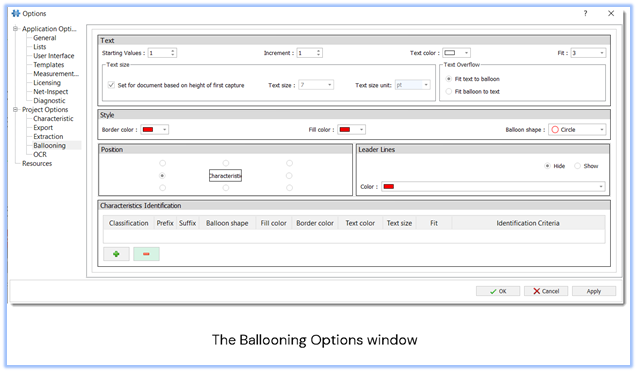
It's recommended that you set your project balloon options such as color, text size, etc. in the "Ballooning Options" window.
To open the Options window:
- Click the "Home" tab, then select "Options".
- Or, you can select "File", then click "Options".
Note: In order to be able to open the Ballooning Options window, you will need to first have an Ideagen Quality Control project open.
2. the Ideagen Quality Control "Balloon Appearance" toolbar:
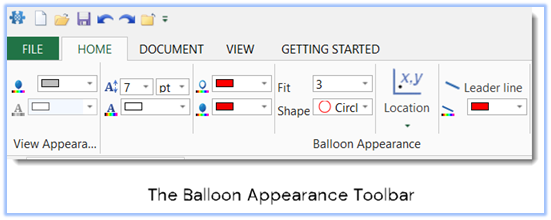
The Balloon Appearance toolbar can be used to update the balloon
settings that are currently saved in the "Balloon Options" window, but
there are a few things to keep in mind when using the toolbar:
You will need to be sure that no characteristic is currently selected
when you make the change, otherwise, the change will only be applied to
the selected balloon:
To update all future balloons through the toolbar, "deselect" the
current balloon, then make the changes in the toolbar. You'll be
notified that the changes will be applied to all future balloons:
Note: Changing balloon settings or options in a project will not change any previously ballooned characteristics.
3. through the "Properties / Preferences" panel:
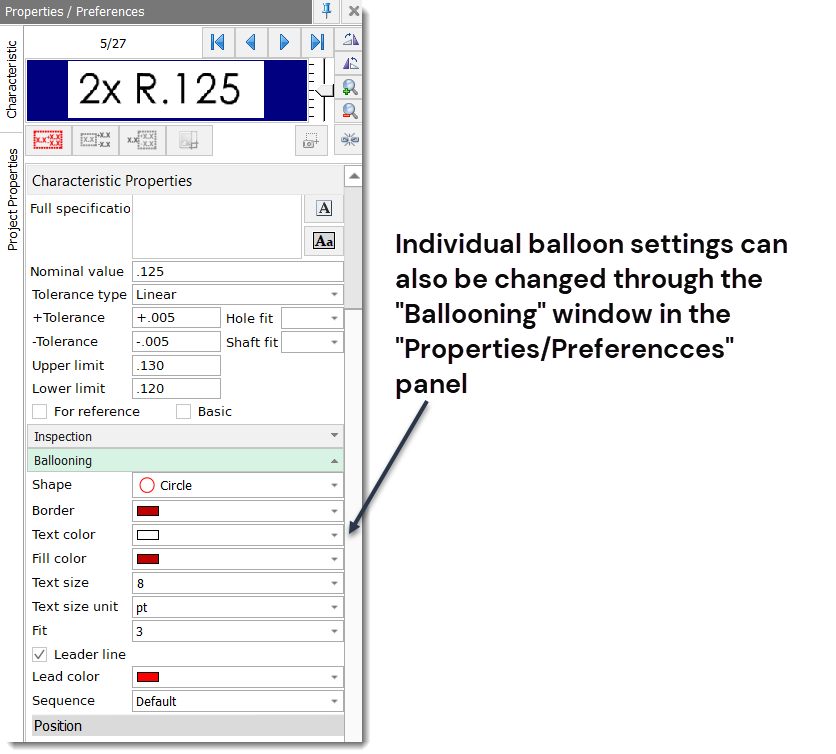
To learn more about this option, you can read the article: How to add a new classification?