Using Optical Character Recognition (OCR) Extraction Modes and how to extract dimensions, notes, and GD&T characteristics
Ideagen Quality Control Professional uses Optical Character Recognition or OCR, to
automatically "read" your dimensions, notes, and GD&T features.
Here's how it works:
Extracting the Part name, Part number, and revision
To extract the Part name, part number, and revision from your drawing:
1) "Mouse over" the Properties/Preferences tab on the top left edge
of Ideagen Quality Control Professional. You can Pin it open with the thumbtack icon.
2) Click the capture icon next to 'Part Name", and draw a capture
window around your drawing's part name in the title block. You can do
the same for the Part Number, Part Revision and the other fields under
"General Settings". You can also manually type into the fields to alter
the values.
Extracting Dimensions, Notes, and Geometric Tolerances
When you are ready to begin extracting characteristics from your
project, you will need to specify whether they will be dimensions,
notes, or GD&T values. This is done by selecting the OCR extraction
mode.
Note: Ideagen Quality Control Professional cannot extract fractional dimensions.
1. One way of selecting the OCR extraction mode is to click on the
"Home" tab, and click on the mode that you want, based on the icon:
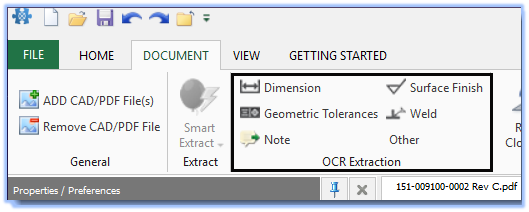
2. Another way to select the OCR extraction mode is to "Right-click" on
your drawing, and select the mode by "Left-clicking". You can also use
the shortcut keys shown below:
Extracting a Dimension
1. Select "Dimension", or use the keyboard shortcut of Ctrl-D.
2. Draw a
capture box around the dimension.
3. The dimension will be displayed in
the "Full Specification" box, and the tolerance, as well as upper/lower
limit values, will be calculated and displayed.
4. You can click into
and modify any of the characteristic properties as needed.
Extracting a Note
1. Select "Note", or use the keyboard shortcut of Ctrl-N.
2. Draw a
capture box around the note.
3. The text will be captured and displayed in
the "Value" box.
4. You can click into and modify any of the
characteristic properties as needed.
Extracting a GD&T Value
1. Right-click on your drawing, select "OCR Extraction", and select "Geometric Tolerances", or use the keyboard shortcut Ctrl-G.
2. For best results, draw a capture window inside the feature control frame. You can correct any error in the GD&T builder: